Showing posts with label jquery. Show all posts

Wednesday, January 22, 2014

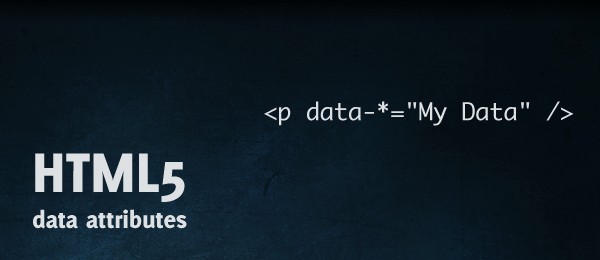
"data" attribute in HTML5 and JQuery

This is used for store a value(its may string, array or object) on a html element.


Setting "data":
<input type="text" id="city" data-info="Main City" />      // Setting via html.
$('#city').data('city', "Main City");                                      // Setting via JS.
$('#city').data('city', ["blue","green","red"]);                      // Store array. 
$('#city').data('city', {special:"River",issue:"Factory"});    // Store object.

Getting Data:
var detail=$('#city').data();

Note: Do not use capital letters on "data" attribute name. Its not working.

Friday, January 3, 2014

JQuery "this" object has different meaning inside ajax call

Usual cases:
Most of the time we are using "$(this)" inside more events, by default "this" represent the current element's object.

For example:
If we need to delete a button, which having id "del", then we write a code as,
$('#del').click(function(){
         $(this).remove(); // Using "this" object to access current selected element.
});


In side an ajax call:
But inside the JQuery ajax call we could not use "this" object. Because ajax function already having a object called "this", which had different meaning. So we have to assign our "this" object into other name, before we going to use ajax.

For example:
Say same as above, we need to delete a button which having id "del", when it was clicked. But now we need to also perform a another action using ajax function. Action may anything like delete a post from database using back end codes like PHP.

So, we have code like follows,
$('#del').click(function(){
         var self=this; // Assigning "this" object into an other variable.
         $.ajax(function(){
                   url: 'delete_post.php',
   type:'POST',
   success:function(data){
                         $(self).remove(); // Using new variable "self" to access current selected element.
                  }
         });
});

Thursday, January 2, 2014

Difference between .on and .live in JQuery

.live
Usually we are using this method for, adding a action for a dynamically created element.

For example: 
Say our user has to enter his friends email on our site. But our page initially has, only one text box with a "add new email" link. So now, when user click on "add new email" link we will call a JS code to generate a new text box with a delete a option.

That is we are write this code under,
$('#add_new_id').click(function(){

      ----- code to generate new text box with a delete link ------

});

But now we have to call delete action, when user click on delete option. If we are simply write as previous one like $('#delete_link').click it will not work. Because we dynamically generated this link. So we write a code as follow,

$('#delete_id').live('click',function(){

      ----- code to delete text box ------

});

Issues on .live
As of JQuery 1.7+ .live is not recommended, you can check this here. Because,

1. jQuery attempts to retrieve the elements specified by the selector before calling the .live() method, which may be time-consuming on large documents.

2. Chaining methods is not supported. For example, $( "a" ).find( ".offsite, .external" ).live( ... ); is not valid and does not work as expected.

3. Since all .live() events are attached at the document element, events take the longest and slowest possible path before they are handled.

And more issues, you can look here.

Use .on instead of .live
We can use "on" through all elements whether the element is loaded previously or dynamically.

Syntax for 'on':
$(document).on(event, selector, action);

Example for using 'on', instead of '.live':
$('#delete_id').live('click', function() { } );   // Don't use this.
$(document).on('click', '#delete_id', function(){ } );   // Use this.

Note:
On the above example we select or search '#delete_id' element directly from 'document'. We can still search under a nearest element as, $('#nearest_known_div_id').on('click','#delete_id', function(){ } );.

Wednesday, July 10, 2013

Implement "Remember Me" option for login using Javascript(JQuery) cookies

1. Get JQuery Cookie library in hand

To implement this first you need to have JQuery Cookie library. So please save following JS file as "jquery.cookie.js", or you can directly download from Github .

//Save it as jquery.cookie.js
/*!
 * jQuery Cookie Plugin v1.3.1
 * https://github.com/carhartl/jquery-cookie
 *
 * Copyright 2013 Klaus Hartl
 * Released under the MIT license
 */
(function (factory) {
 if (typeof define === 'function' && define.amd) {
  // AMD. Register as anonymous module.
  define(['jquery'], factory);
 } else {
  // Browser globals.
  factory(jQuery);
 }
}(function ($) {

 var pluses = /\+/g;

 function raw(s) {
  return s;
 }

 function decoded(s) {
  return decodeURIComponent(s.replace(pluses, ' '));
 }

 function converted(s) {
  if (s.indexOf('"') === 0) {
   // This is a quoted cookie as according to RFC2068, unescape
   s = s.slice(1, -1).replace(/\\"/g, '"').replace(/\\\\/g, '\\');
  }
  try {
   return config.json ? JSON.parse(s) : s;
  } catch(er) {}
 }

 var config = $.cookie = function (key, value, options) {

  // write
  if (value !== undefined) {
   options = $.extend({}, config.defaults, options);

   if (typeof options.expires === 'number') {
    var days = options.expires, t = options.expires = new Date();
    t.setDate(t.getDate() + days);
   }

   value = config.json ? JSON.stringify(value) : String(value);

   return (document.cookie = [
    config.raw ? key : encodeURIComponent(key),
    '=',
    config.raw ? value : encodeURIComponent(value),
    options.expires ? '; expires=' + options.expires.toUTCString() : '', // use expires attribute, max-age is not supported by IE
    options.path    ? '; path=' + options.path : '',
    options.domain  ? '; domain=' + options.domain : '',
    options.secure  ? '; secure' : ''
   ].join(''));
  }

  // read
  var decode = config.raw ? raw : decoded;
  var cookies = document.cookie.split('; ');
  var result = key ? undefined : {};
  for (var i = 0, l = cookies.length; i < l; i++) {
   var parts = cookies[i].split('=');
   var name = decode(parts.shift());
   var cookie = decode(parts.join('='));

   if (key && key === name) {
    result = converted(cookie);
    break;
   }

   if (!key) {
    result[name] = converted(cookie);
   }
  }

  return result;
 };

 config.defaults = {};

 $.removeCookie = function (key, options) {
  if ($.cookie(key) !== undefined) {
   // Must not alter options, thus extending a fresh object...
   $.cookie(key, '', $.extend({}, options, { expires: -1 }));
   return true;
  }
  return false;
 };

}));


2. Add "Remember Me" check box on Login page

Add "Remember Me" check box in login form, then include "jquery.cookie.js" and your JS file (here: login.js).

<input type="text" id="username" /><br />
<input type="password" id="password" /><br />
<input type="checkbox" id="c1" />Remember Me<br />
<input type="submit" id="loginsubmit" />
.
.
.
<script src="js/jquery.cookie.js"></script>
<script src="js/login.js"></script>


3. Set and Get Cookie using JQuery

Now, set entered username on cookie, or display username if already avail on cookie. To do this,
include following line in your JS file (here: login.js)

$(document).ready(function()
{

// Please read these set of code after you read next set. So that you can understand simply.
var username=$.cookie("username");   // Get username from cookie on form load.
if(username!=undefined)
{
$('#loginsubmit').val(username);   // Display username on input box if avail on cookie.
      $('#c1').prop('checked', true);  // Check check box manually by us. So that duration for current email will reset.
}

// Read this set first.
$('#loginsubmit').click(function()
{
      if($('#c1').is(':checked')) // If user checked remember me check box
{
                var email=$('#loginsubmit').val(); // Get entered username or email
                //  Set username on cookie when login form submit.
$.cookie("username", email, { expires: 365 });  // Remember username for 1 year.
}
      // Your other codes...
}

});


Note:
1. Assign username or email to cookie after you done form validation like email validation, empty checking, so that you can sure for stored value are original.

2. And here we set username or email on cookie for one year. You don't need to worry about like "will expire after one year?". Because it will reset to one year whenever user try to login. And only go empty once if the user not login even one time for a year. You can change this duration as you need.

Tuesday, June 18, 2013

Get array input value in jquery

//js file

var tmp_array=new Array();
 $('input[name="search\\[\\]"]').each(function(){
tmp_array.push(this.value);
});

Wednesday, June 5, 2013

Custom attribute for html element

<a href="javascript:void(0);" detail="<?php echo $id; ?>" title="View" class="view">View</a>


Can access this via :
document.getElementById('view').getAttribute("detail");
OR
$(this).attr('detail');

Example:
<html>
<head>
<title>Custom Attribute</title>
</head>
<body>
<a href="javascript:void(0);" detail="1" title="Click to alert this id." class="view">Alert this id</a><br /><br />
<a href="javascript:void(0);" detail="2" title="Click to alert this id." class="view">Alert this id</a><br /><br />
<a href="javascript:void(0);" detail="3" title="Click to alert this id." class="view">Alert this id</a><br /><br />
<a href="javascript:void(0);" detail="4" title="Click to alert this id." class="view">Alert this id</a><br />
</body>
</html>

<script src="//ajax.googleapis.com/ajax/libs/jquery/1.10.1/jquery.min.js"></script>
<script type="text/javascript">
$('document').ready(function(){
$('.view').click(function(){
alert($(this).attr('detail'));
})
})
</script>


Thursday, May 23, 2013

JQuery toast message / notice


http://akquinet.github.io/jquery-toastmessage-plugin/demo/demo.html

JQuery drag and drop


http://www.webresourcesdepot.com/wp-content/uploads/file/jquerydragdrop/

http://nettuts.s3.amazonaws.com/127_iNETTUTS/demo/index.html

http://jqueryui.com/draggable/

http://threedubmedia.com/code/event/drag/demo/

Learn JavaScript - String and its methods - 16

<!DOCTYPE html> <html> <head> <meta charset="utf-8"> <title>String and it's methods - JS...